
Connect Claude Desktop to MyGPTLife and send your first message
Enable Developer Mode on Windows, enter the gateway URL and your token, test the connection and verify it with your first message.

Create a token with Claude model access
This walkthrough uses Claude Desktop for Windows. Sign in to MyGPTLife, create an API token and check that its group has access to your chosen Claude model. Copy the token.
Open MyGPTLife token management
Enable Developer Mode
Open the top-left application menu in Claude Desktop. Choose Help → Troubleshooting → Enable Developer Mode…, confirm and restart if prompted.
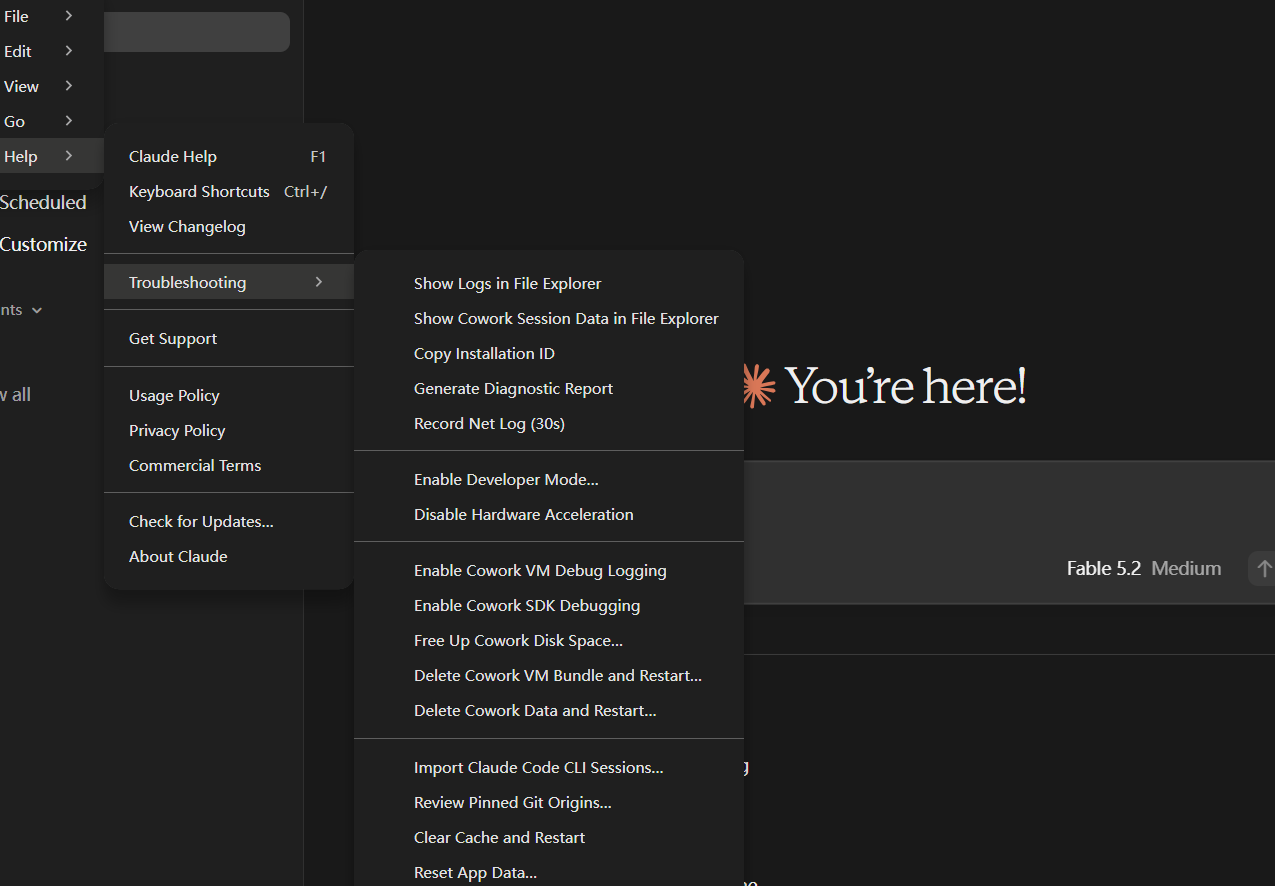
Configure the inference gateway
Open Developer → Configure Third-Party Inference… and choose Connection. Enter the values below. The desktop client adds /v1/messages to the gateway base URL.
Inference provider   Gateway
Gateway base URL     https://api4.mygptlife.com
Credential kind      Static API key
Gateway auth scheme  Bearer
Paste your MyGPTLife token into Gateway API key. Select Test connection, then Apply Changes after a successful test. Relaunch when prompted.
Send your first message
Start a new session in Code, choose an available model and send “Reply OK.” A reply confirms that the selected model can process your request.
Resolve connection and model discovery issues
For a 401, check the base URL, the complete token and its status. If your token group explicitly requires x-api-key, select it under Gateway auth scheme and retry.
If the model list is empty, find an eligible model ID in the console and enter it under Models. If the Developer menu disappears after relaunching, re-enable it under Help → Troubleshooting. For read-only settings on a managed device, contact the device administrator.
The desktop app stores its gateway settings in the app. For the Claude Code CLI, configure ANTHROPIC_BASE_URL and ANTHROPIC_AUTH_TOKEN separately in ~/.claude/settings.json.