
Moyla Publishing Tool launches with one-click formatting for AI-written Markdown
Moyla Publishing Tool launched on November 23. Paste an AI draft or the contents of a .md file into your browser, choose from 30 themes, then export a PDF or copy the formatted text into a WeChat Official Account draft.
Start with a book club invitation
Suppose you are planning a weekend book club. The organizer wants a PDF to review, and the editor needs a WeChat article to preview. Give your notes to your AI writing assistant with this request.
Turn these notes into a Markdown invitation titled “Weekend Book Club.” Under “Agenda,” put each activity on its own bulleted line. Add a “Before you come” section and bold what readers should do in advance.
Open the tool, select the sample text in the editor and paste the AI draft over it. If you already have a .md file, open it in a text editor and copy its contents into the same field. You can also paste formatted text from Feishu, Notion or Word.
Choose a theme and check the phone layout
Select the native WeChat theme in the top bar. The line starting with two hash marks becomes an agenda heading, hyphenated lines become a list, and words between double asterisks appear in bold. Open the full theme menu to compare type sizes, spacing and colors on the same text.
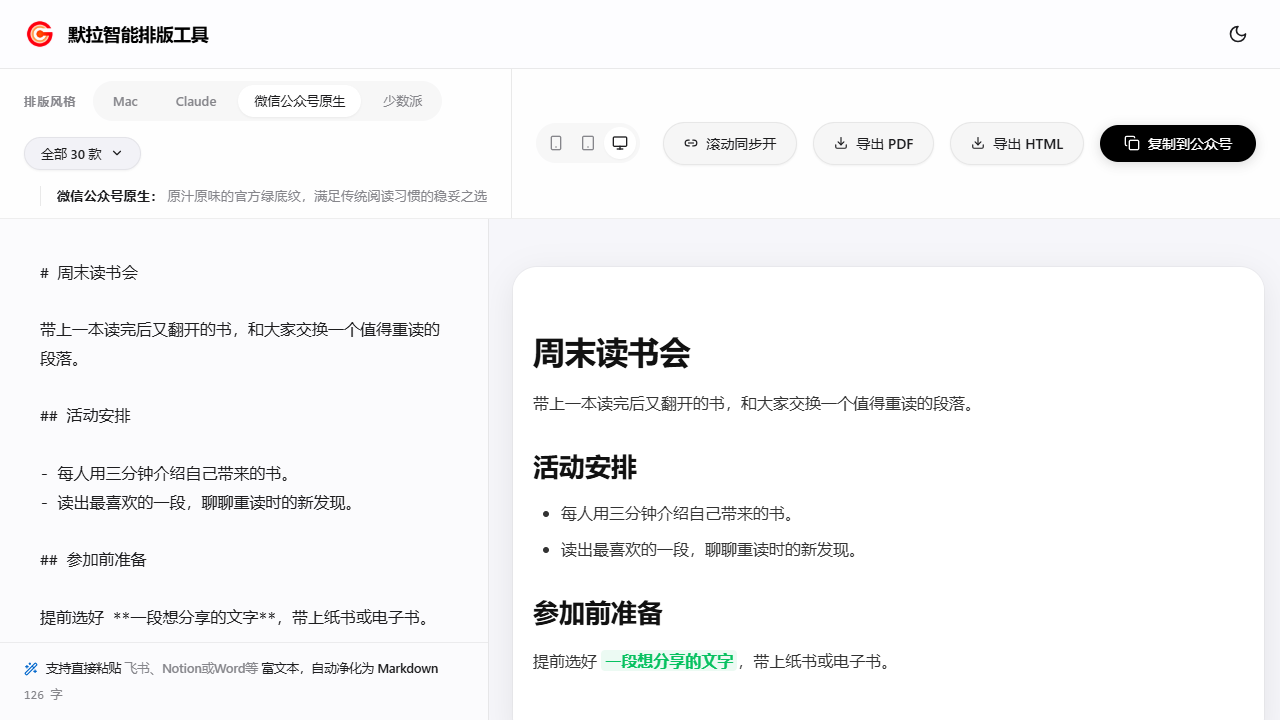
On Windows or macOS, edit the source on the left and review the result on the right. Select the phone icon to see where a long headline wraps. In a phone browser, switch between the editor and preview tabs.
Export a PDF for review
In a desktop browser, select the PDF export button to download the formatted file. Send it to the host to check the running order. If each reader now has five minutes instead of three, change the timing in the Markdown and export a fresh copy.
Paste the final text into a WeChat draft
Select the WeChat copy button at the right end of the toolbar. On a phone it has a shorter copy label. Once the tool confirms the copy, open your WeChat Official Account dashboard, start a new article and paste into the body field. Enter the headline separately and use WeChat’s preview to check images and line breaks before saving the draft or publishing.